This tutorial explains how to create sweep jobs from a pre-existing W&B project. By the end, you’ll have created a baseline project, configured a hyperparameter sweep, and launched agents that run training jobs in parallel. You use the Fashion MNIST dataset to train a PyTorch convolutional neural network to classify images. The W&B examples repository (PyTorch CNN Fashion) provides the required code and dataset. Explore the results in this W&B Dashboard.

Create a project

First, create a baseline project by training the example model at least once. This baseline gives the sweep something to configure against in later steps. Download the PyTorch MNIST dataset example model from the W&B examples GitHub repository. Next, train the model. The training script is within the examples/pytorch/pytorch-cnn-fashion directory. To download and train the example model, follow these steps:
  1. Clone the repository: git clone https://github.com/wandb/examples.git.
  2. Open the example directory: cd examples/pytorch/pytorch-cnn-fashion.
  3. Run the training script manually: python train.py.
Optional: Explore the example in the W&B App dashboard. View an example project page. After this initial run completes, you have a baseline project in W&B that the sweep can build on.

Create a sweep

With a baseline project in place, you can configure a sweep over its runs. From your project page, open the Sweep tab in the project sidebar and select Create Sweep.
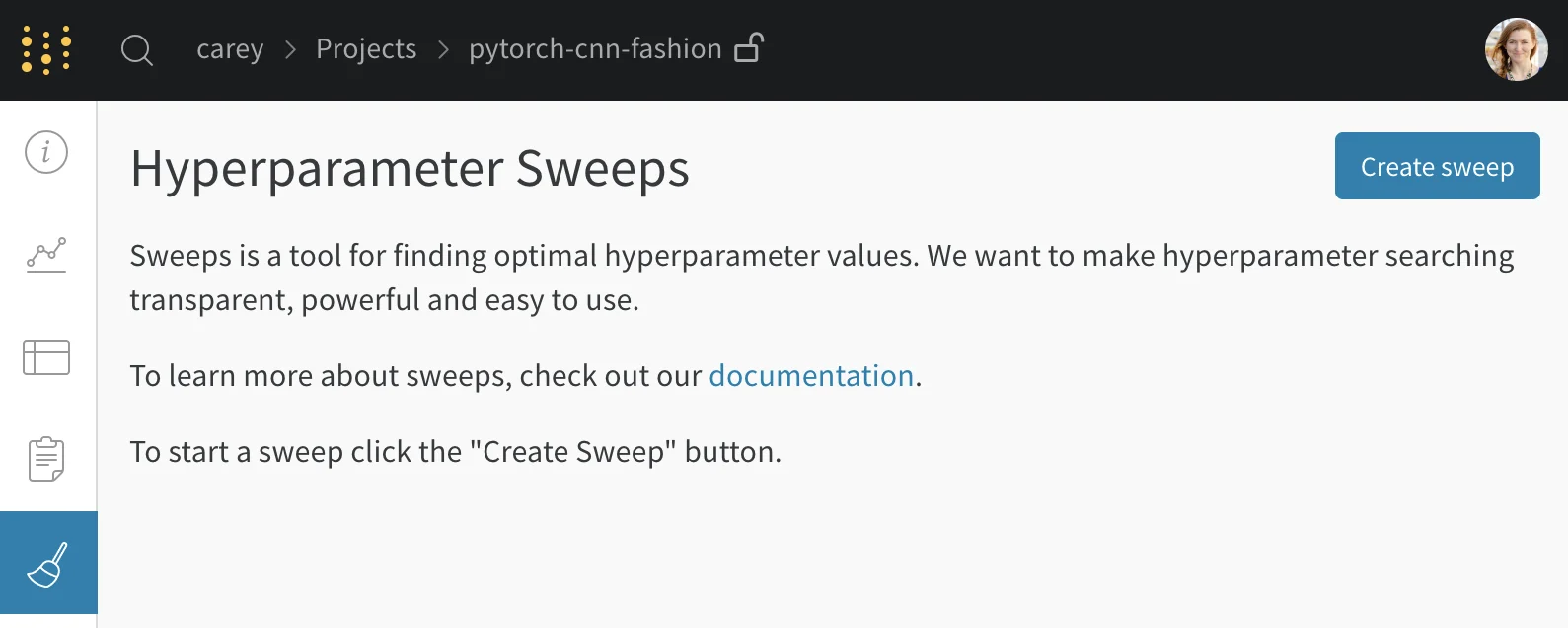
W&B project page with the Sweep tab open and the Create Sweep button highlighted
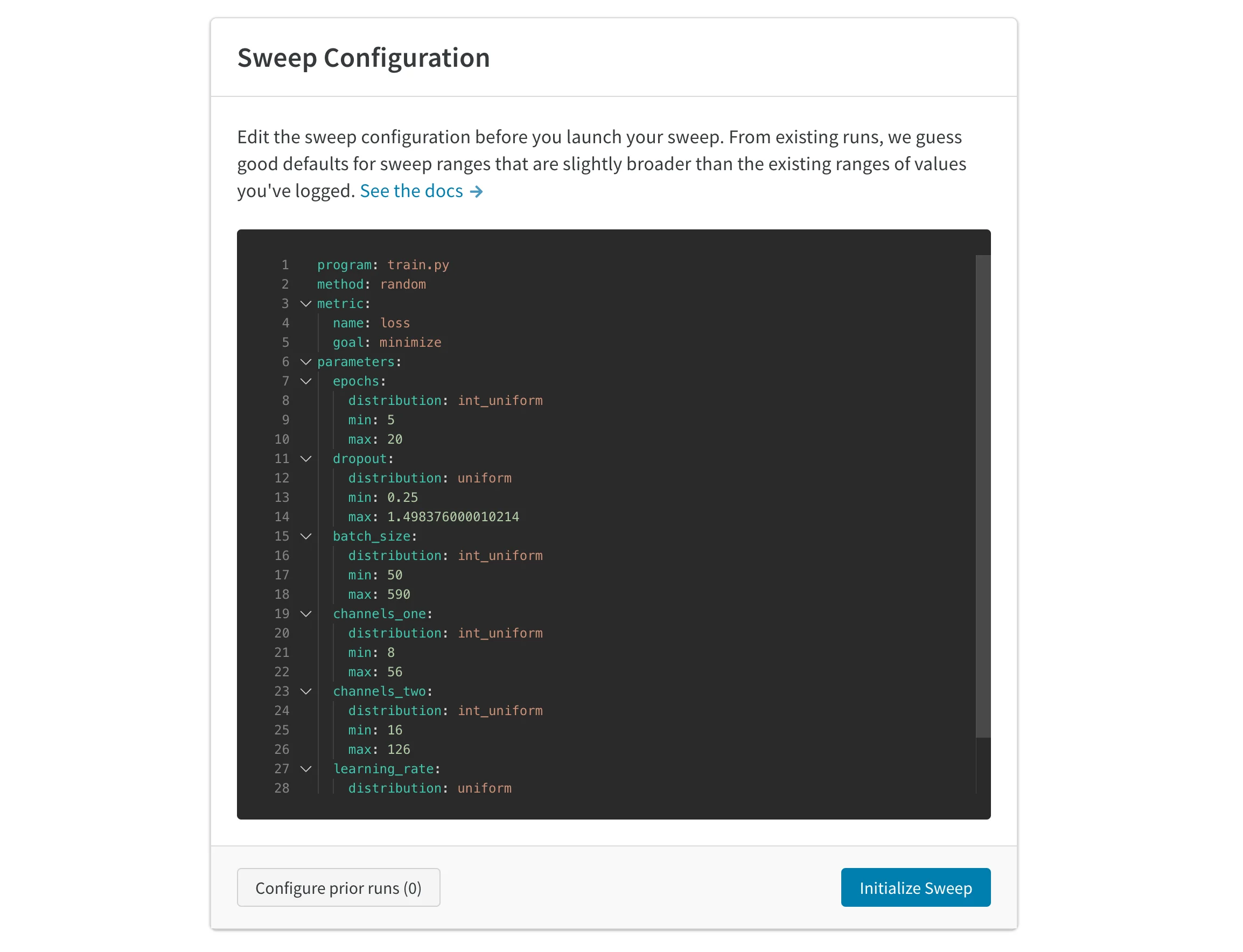
The auto-generated configuration suggests values to sweep over based on the runs you’ve completed. Edit the configuration to specify what ranges of hyperparameters you want to try. When you launch the sweep, it starts a new process on W&B’s hosted sweep server. This centralized service coordinates the agents (the machines that run the training jobs).
Auto-generated sweep configuration editor showing hyperparameter ranges

Launch agents

After you configure the sweep, launch one or more agents locally to execute the runs. To distribute the work and finish the sweep job more quickly, launch up to 20 agents on different machines in parallel. The agent prints out the next set of parameters to use.
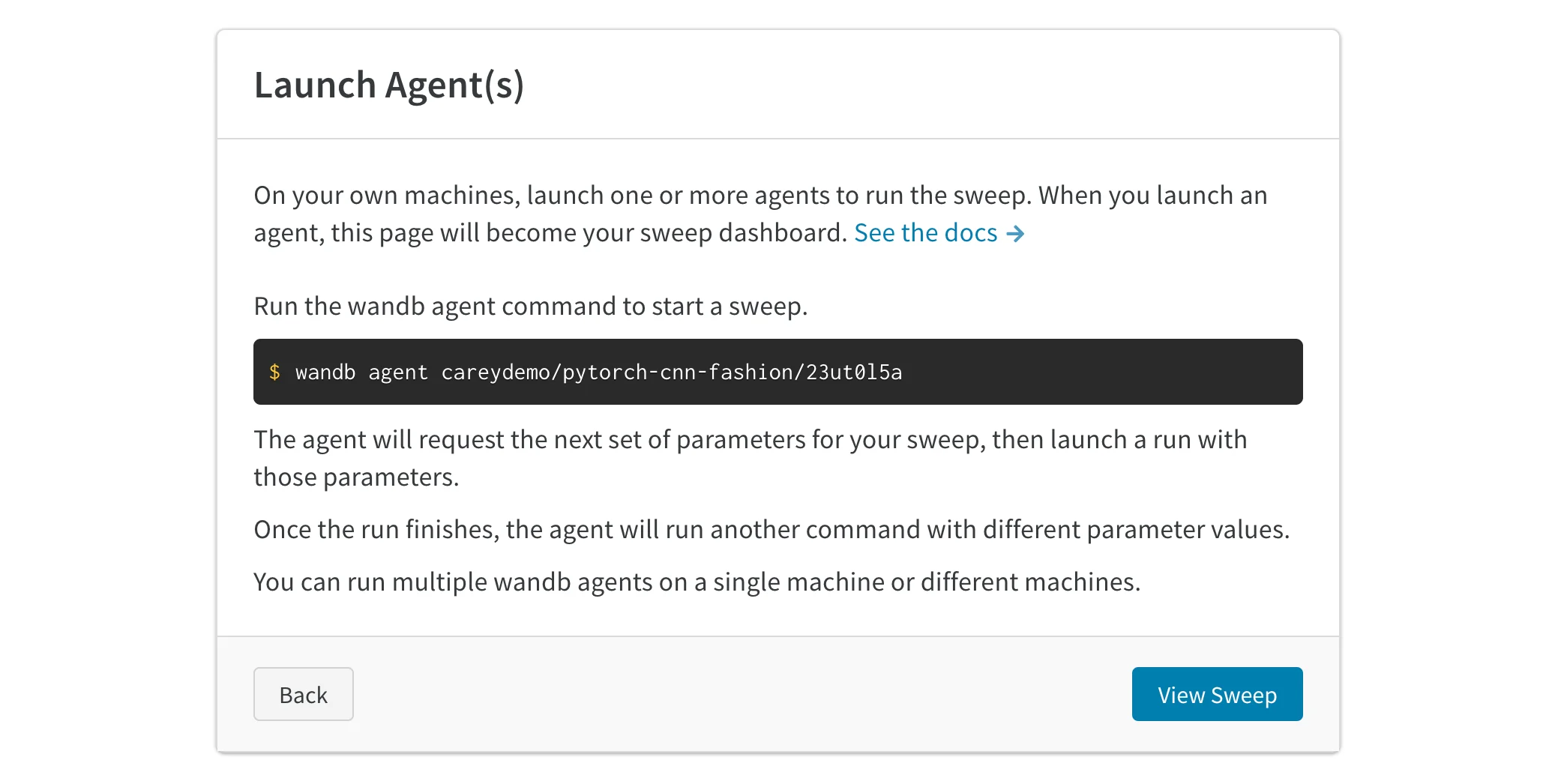
Terminal output from a sweep agent printing the next set of hyperparameters
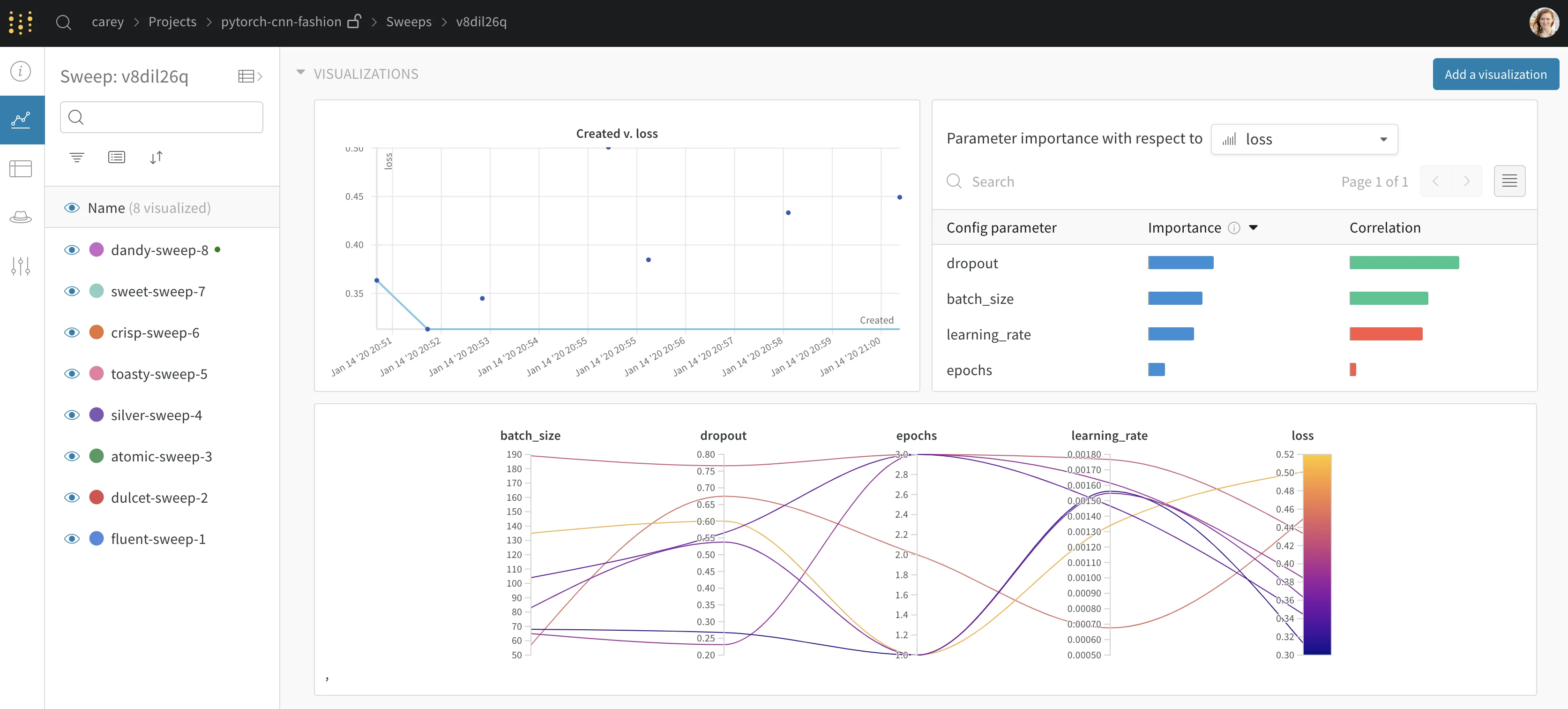
You now have a running sweep that coordinates training jobs across your agents and reports results back to W&B. The following image shows what the dashboard looks like as the example sweep job runs.
Sweep dashboard plotting metrics across parallel training runs

Seed a new sweep with existing runs

You can also launch a new sweep using existing runs that you’ve previously logged, which lets you reuse earlier results as a starting point. To seed a new sweep with existing runs, follow these steps:
  1. Open your project table.
  2. Select the runs you want to use by enabling their row checkboxes.
  3. Select the dropdown to create a new sweep.
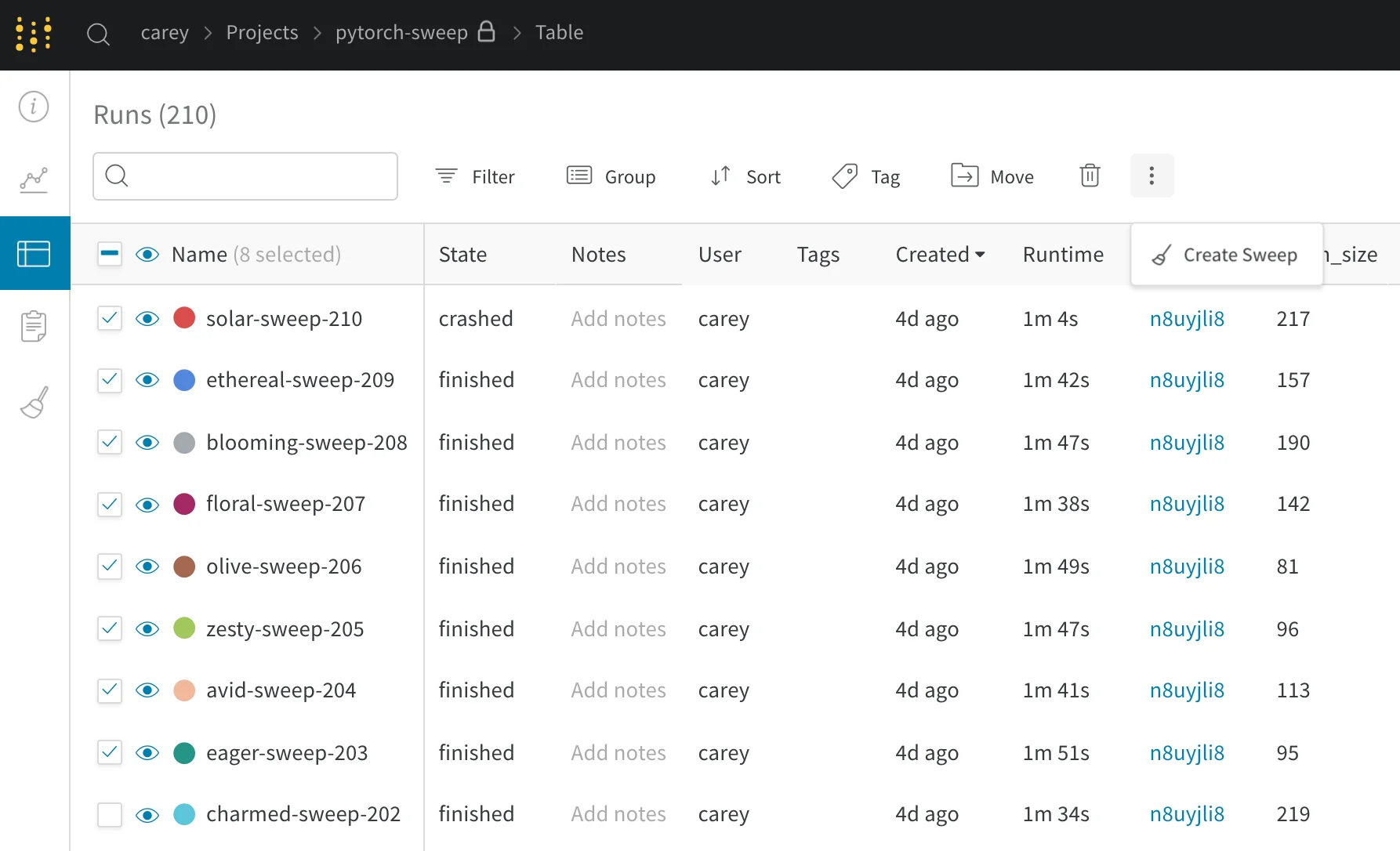
Your sweep is now set up on the server. Launch one or more agents to start the runs.
Project runs table with rows selected and the create sweep option in the dropdown
If you start the new sweep as a Bayesian sweep, the selected runs also seed the Gaussian Process.